Desktop & dashboard
Two surfaces, one app
Section titled “Two surfaces, one app”Hermes has two interfaces:
| Surface | What it’s for | How to open |
|---|---|---|
| Desktop | Chat, run tasks, get things done | hermes desktop |
| Dashboard | Configure, manage, monitor | hermes dashboard |
Desktop app
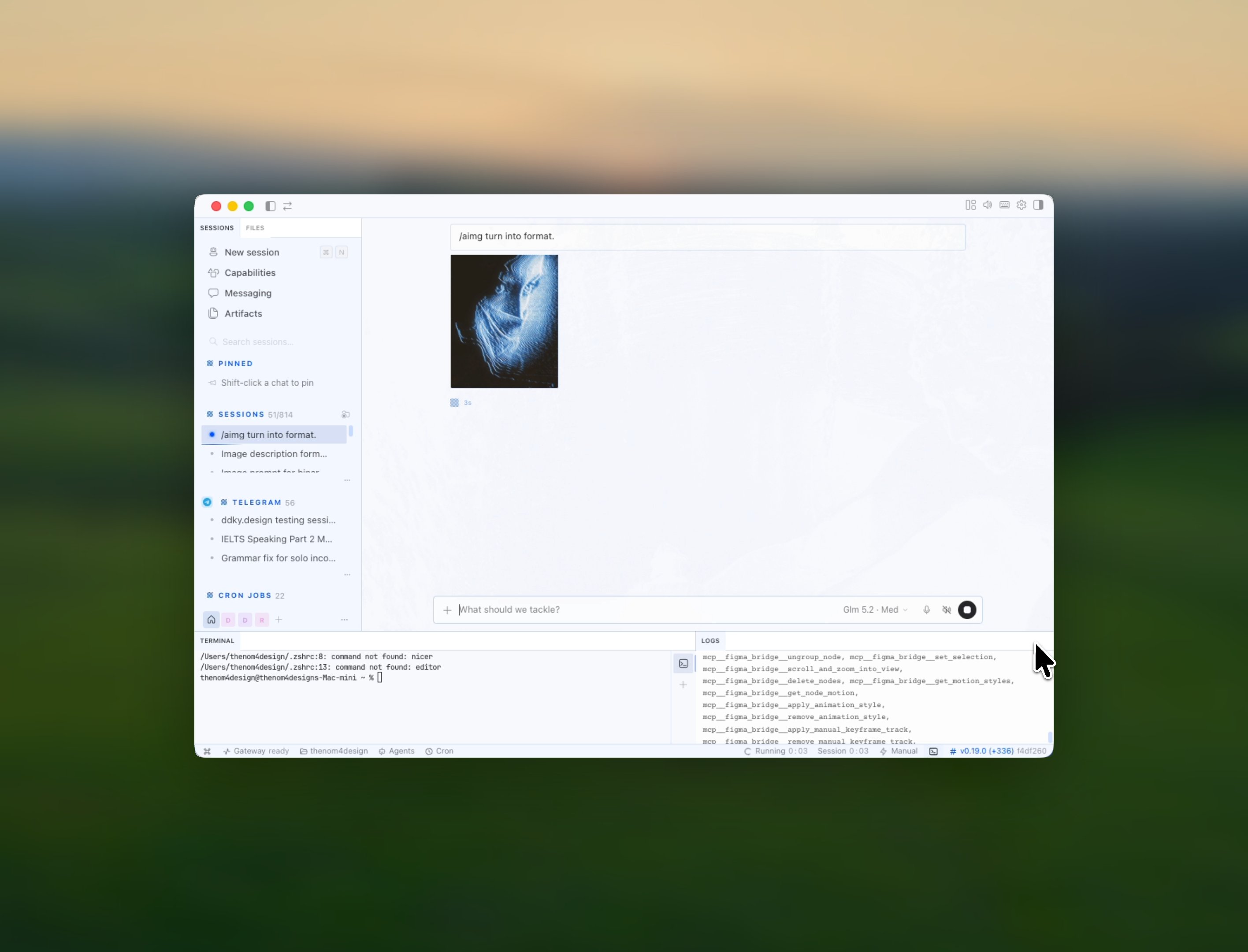
Section titled “Desktop app”The desktop app is where you spend 90% of your time. It’s a chat interface: type what you want, Hermes does it.
What you’ll see
Section titled “What you’ll see”- Chat panel: your conversation with Hermes
- Skills sidebar: list of installed skills (click to view details)
- Tools indicator: shows which tools are active (web, terminal, file, vision, image_gen)
- Model indicator: which AI model is currently selected
- Project switcher: switch between project workspaces
Designer Tip:
The desktop app is for doing. The dashboard is for configuring. If you’re not sure which one you need, you need the desktop app.
Dashboard
Section titled “Dashboard”The dashboard is where you configure Hermes. Open it with:
hermes dashboardWhat you’ll find
Section titled “What you’ll find”| Section | What it does |
|---|---|
| Config | Edit your config.yaml: models, providers, tools |
| MCP | Manage MCP server connections (Figma, Paper, etc.) |
| Cron | View and manage scheduled jobs |
| Kanban | Multi-agent task boards |
| Skills | Browse, install, manage skills |
| Memory | What Hermes remembers about you |
Designer Tip:
You don’t need to touch the dashboard on day one. It’s there for when you want to go further: custom models, MCP servers, cron jobs, multi-agent.
The key insight
Section titled “The key insight”Desktop app to talk, dashboard to configure, terminal as last resort.
Most designers never need the terminal after the initial install. Everything you need is in the desktop app or dashboard.
Next steps
Section titled “Next steps”- Telegram Gateway: use Hermes from your phone
Improved by